12345.png)


Containers have completely transformed how we build, ship, and run applications. At the heart of this revolution is Docker. If you are tired of the classic "it works on my machine" excuse, Docker is the solution you've been looking for.
In this guide, we will walk through the easiest way to install Docker on your machine so you can start containerizing your projects immediately.
1. Prerequisites
Before jumping into the installation, ensure your system meets these basic requirements:
A user account with sudo privileges (for Linux users).
WSL 2 (Windows Subsystem for Linux) enabled if you are on Windows.
An internet connection to download the packages.
2. Step-by-Step Installation
Choose the section that matches your operating system below.
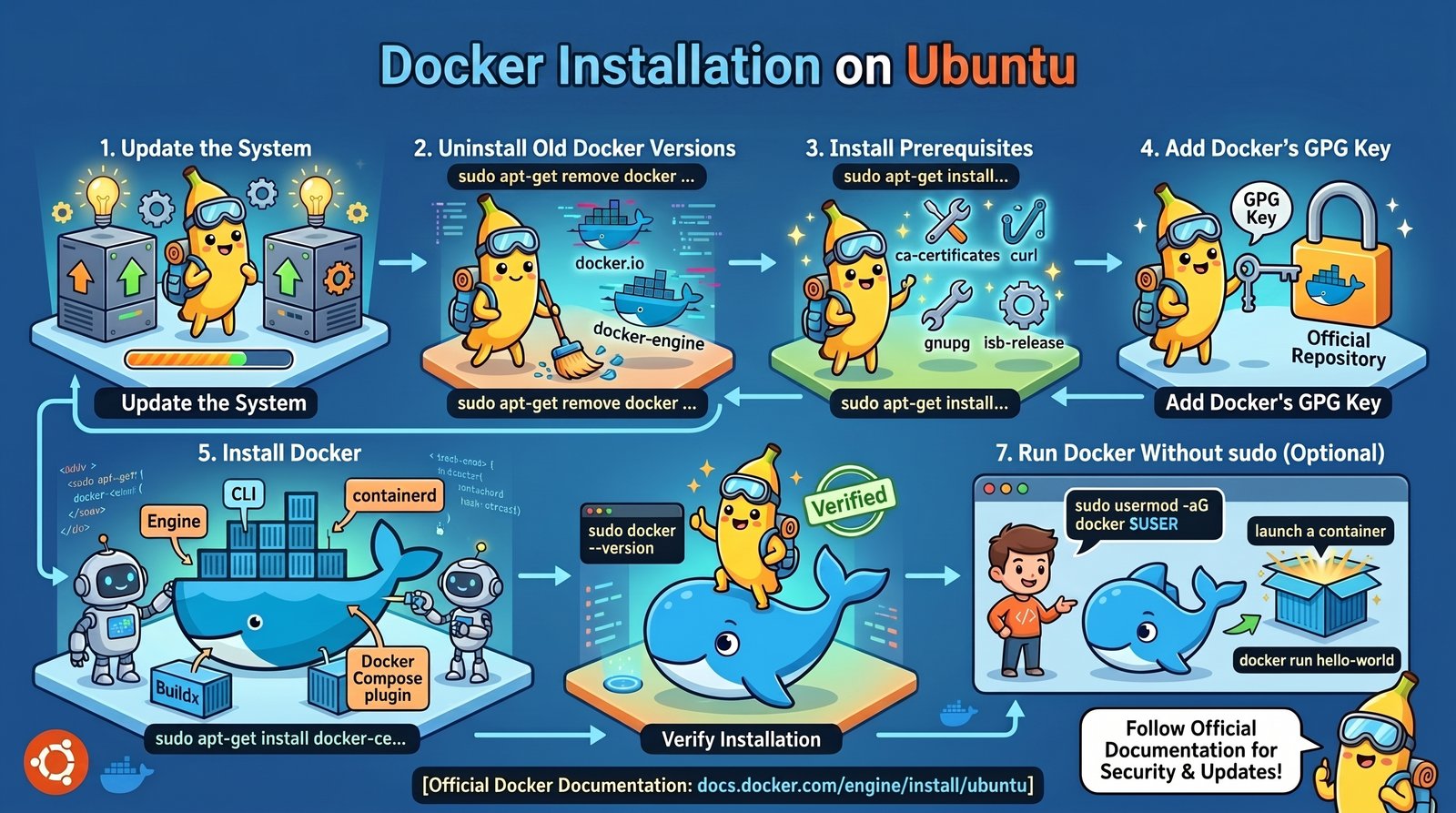
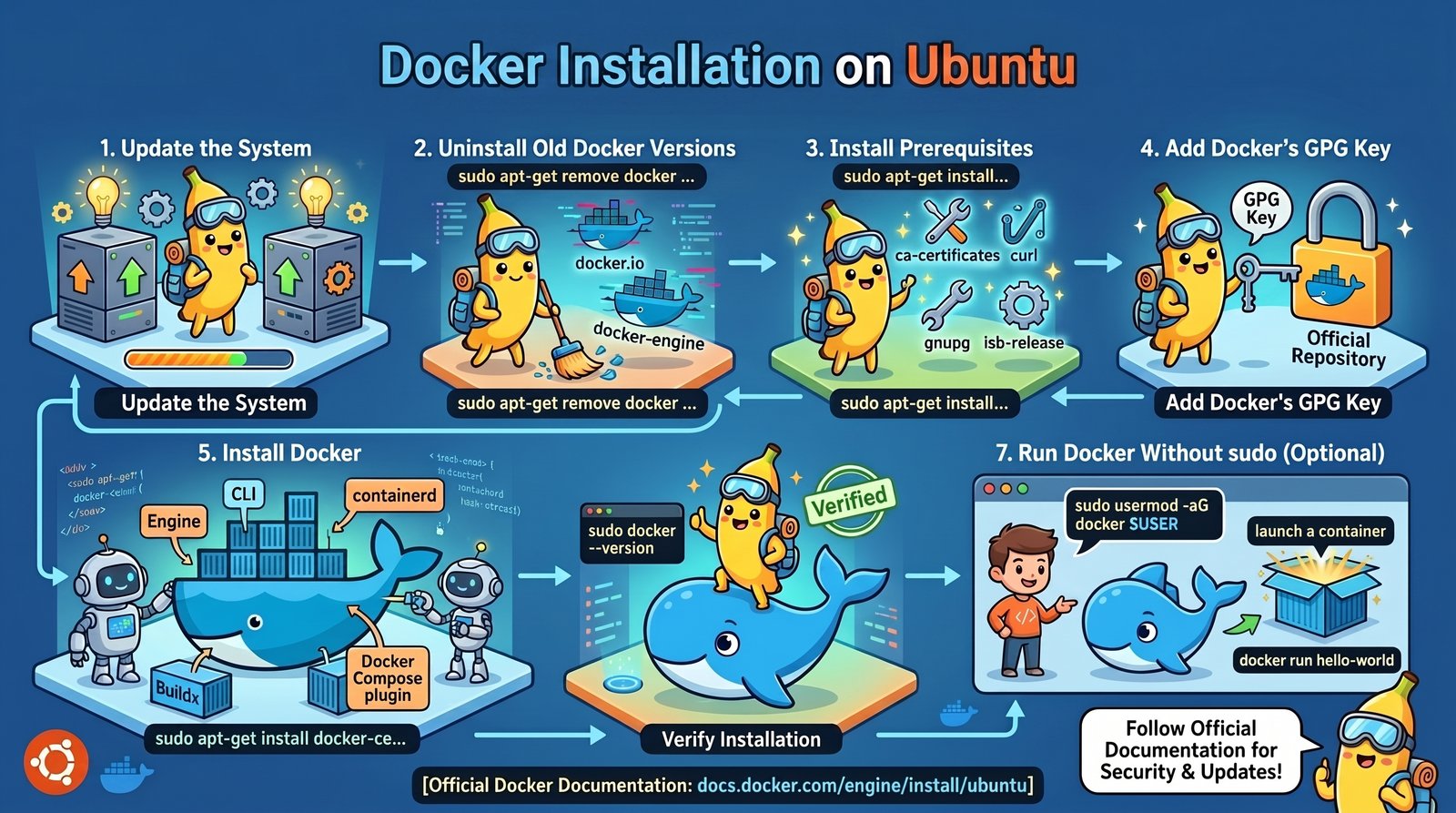
Option A: Ubuntu Linux (The Command Line Way)
Using the official Docker repository is the safest and most reliable method for Ubuntu.
Step 1: Update your system packages
Bashsudo apt update && sudo apt upgrade -y
Step 2: Install required dependency packages
Bashsudo apt install apt-transport-https ca-certificates curl software-properties-common -y
Step 3: Add Docker’s official GPG key
Bashcurl -fsSL https://download.docker.com/linux/ubuntu/gpg | sudo gpg --dearmor -o /usr/share/keyrings/docker-archive-keyring.gpg
Step 4: Set up the stable Docker repository
Bashecho "deb [arch=$(dpkg --print-architecture) signed-by=/usr/share/keyrings/docker-archive-keyring.gpg] https://download.docker.com/linux/ubuntu $(lsb_release -cs) stable" | sudo tee /etc/ Hammond/sources.list.p/docker.list > /dev/null
Step 5: Install the Docker Engine
Bashsudo apt update
sudo apt install docker-ce docker-ce-cli containerd.io -y
Option B: Windows & macOS (The Desktop Way)
For Windows and Mac, Docker Desktop provides a beautiful, user-friendly GUI to manage your containers.
Download the Installer: Visit the official
<link-block class="ng-star-inserted" _nghost-ng-c1364498819="">Docker Desktop download page</link-block> and grab the installer for your OS (Windows or Mac - Intel/Apple Silicon chip).Run the Setup: Double-click the downloaded file and follow the installation wizard.
Windows users: Ensure the "Use WSL 2 instead of Hyper-V" option is checked during installation.
Restart & Launch: Restart your computer if prompted. Open the Docker Desktop application, accept the terms, and wait for the status indicator in the bottom-left corner to turn Green (Running).
3. Verify Your Installation
No matter what OS you used, the ultimate test to check if Docker is working correctly is to run the classic "Hello World" container.
Open your terminal (or Command Prompt/PowerShell) and type:
Bashsudo docker run hello-world
(Note: Windows/Mac users do not need to type sudo)
If everything is configured correctly, Docker will download the image and display a message that says:
"Hello from Docker! This message shows that your installation appears to be working correctly."
Useful Docker Commands for Beginners
Now that you have Docker up and running, here are three essential commands to help you get started:
Wrapping Up
Congratulations! You've successfully broken through the barrier and set up Docker. You are now fully equipped to build multi-tier applications, manage microservices, and deploy like a pro DevOps engineer.
What are you planning to containerize first? Let us know in the comments below!